Import your Instagram saves
Saved a ton of Reels and posts on Instagram? Bring them into MemRa so they're transcribed, summarised, and searchable — instead of buried in your Saved tab forever. This page walks you through asking Instagram for your data, then sending it to us to import.
It's a couple of minutes of tapping, then a wait (a few minutes up to a day) for Instagram to prepare your file. We do the import once you send it.
In the Instagram app on your phone
📷 The screenshots below are in English — TikTok and Instagram show their own screens, but the buttons are in the same place in your language.
-
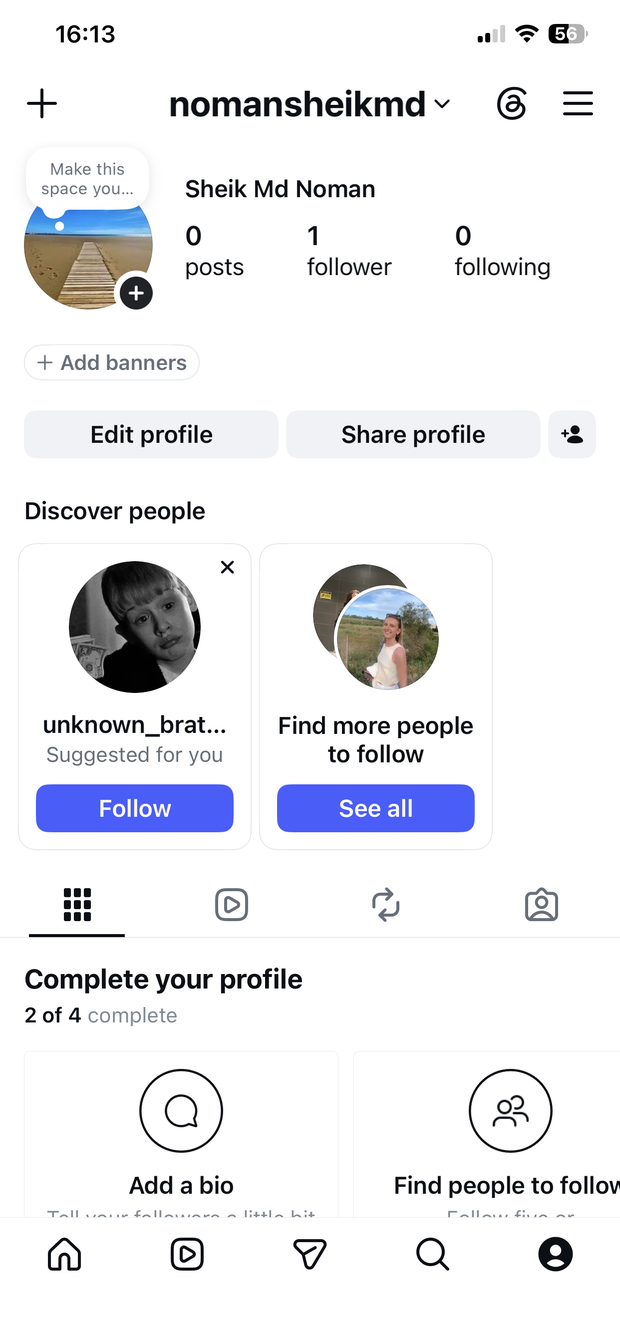
Open your Profile, then tap the ☰ menu (top-right)
This opens Settings and activity.
-
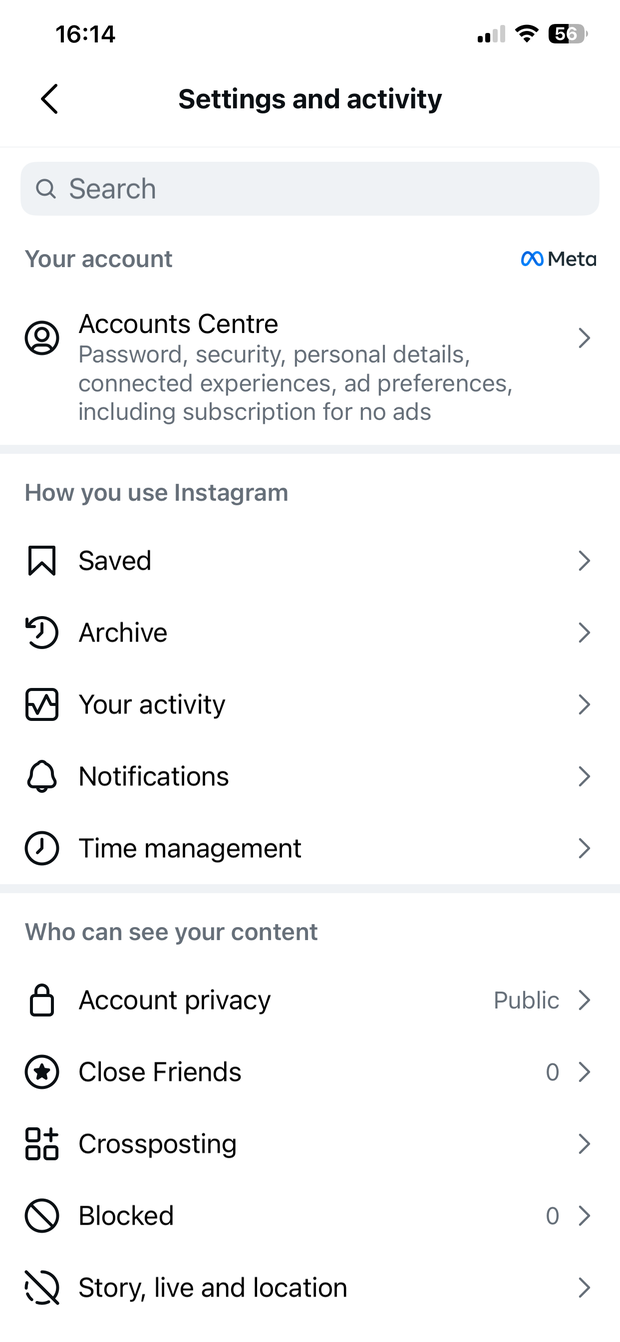
Open Accounts Centre
It's near the top of Settings and activity, under "Your account" (the Meta "Accounts Centre" that links your Instagram and Facebook). Tap into it.
-
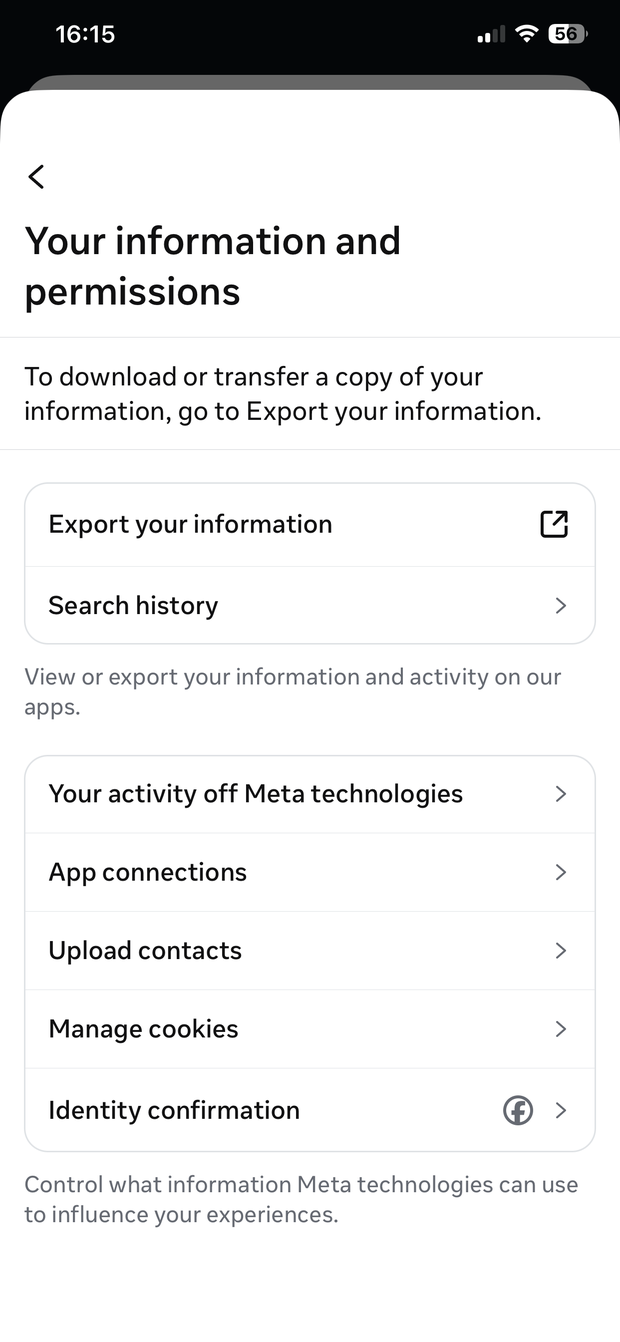
Tap Your information and permissions → Export your information
-
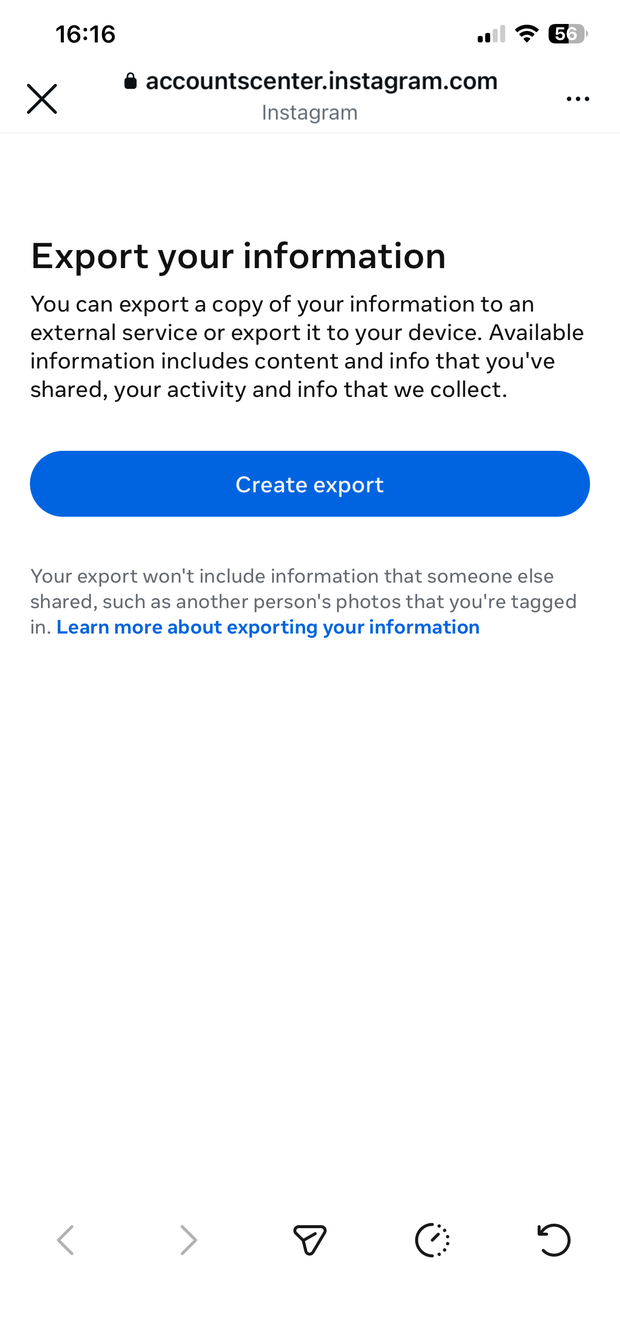
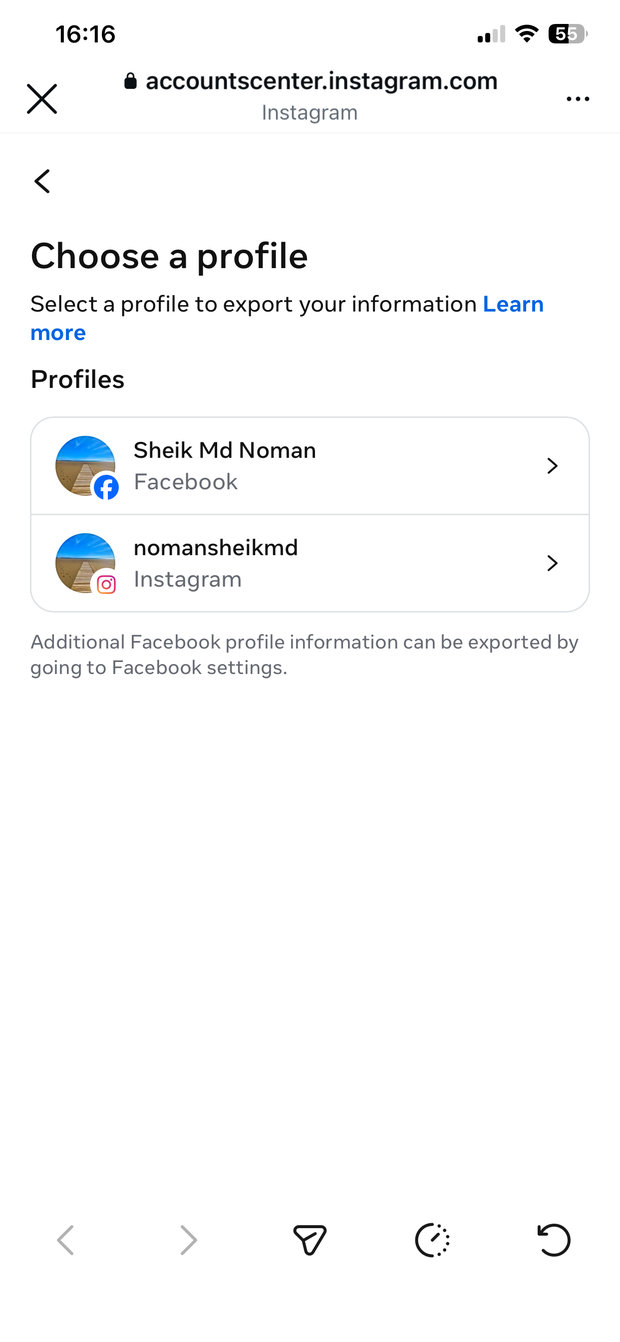
Tap Create export
Choose your Instagram account if asked which profile.
-
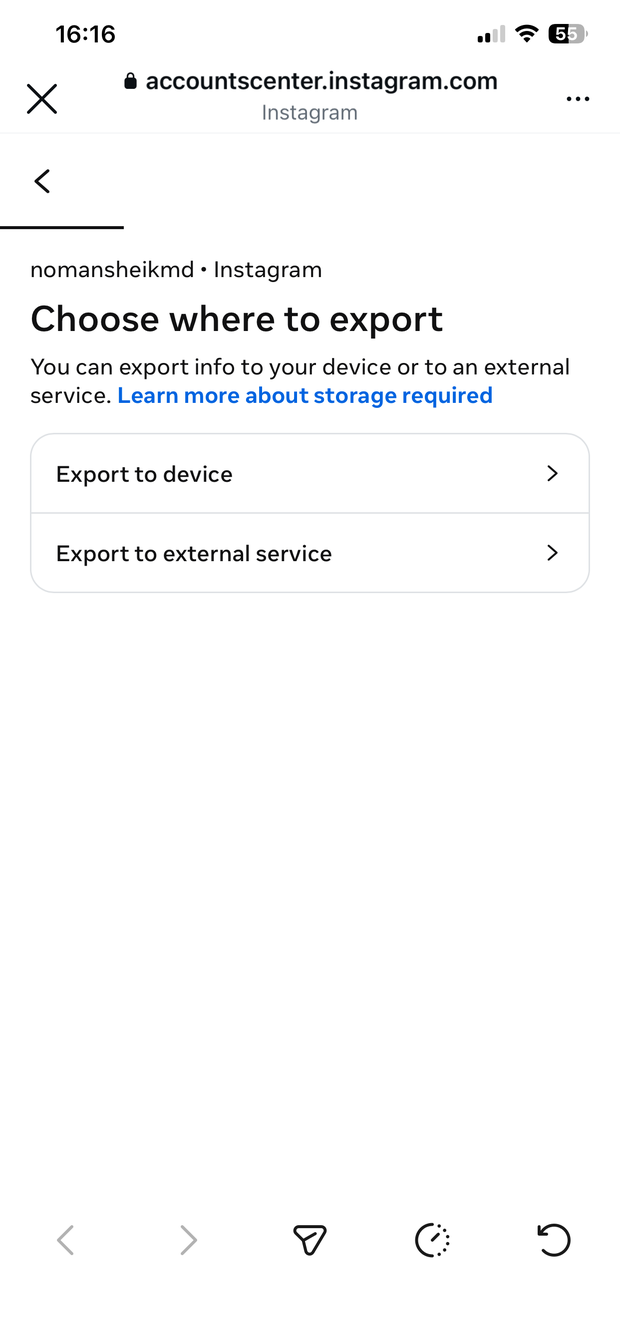
Choose Export to device
(Not Export to external service — we just want the file on your phone.)
-
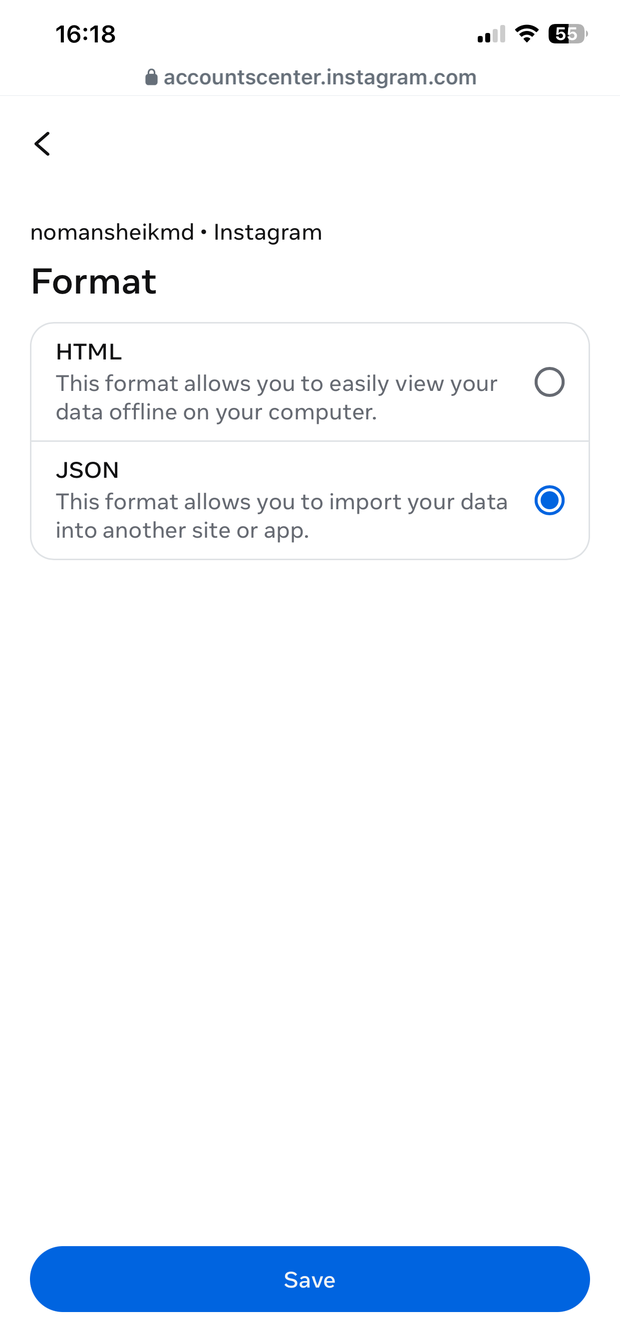
On the Confirm your export screen, set the format to JSON
This screen summarises your export. The one setting you must change is the Format: tap Format, choose JSON (not HTML — JSON is the version we can import), then tap Save.
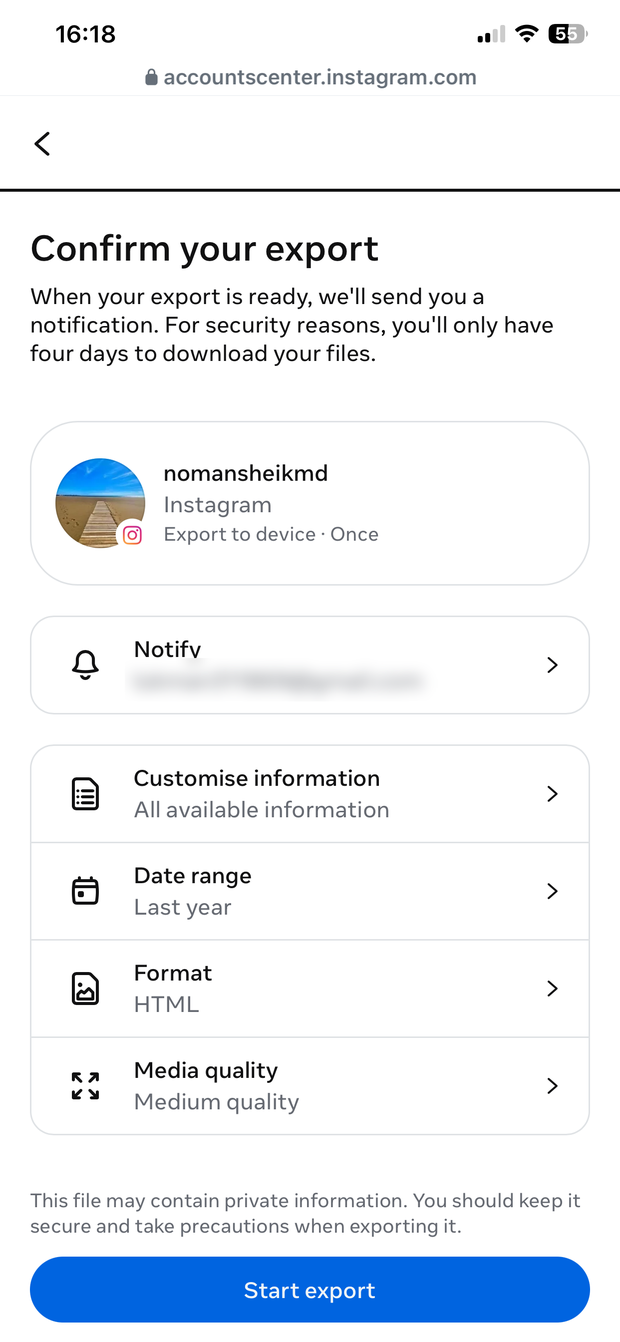
Optional: tap Customise information and narrow it to just Saved (under "Your activity") for a smaller file, and set Date range to All time. The defaults work too — we only read your saved items either way.
-
Tap Start export
Re-enter your password if asked, then tap Continue.
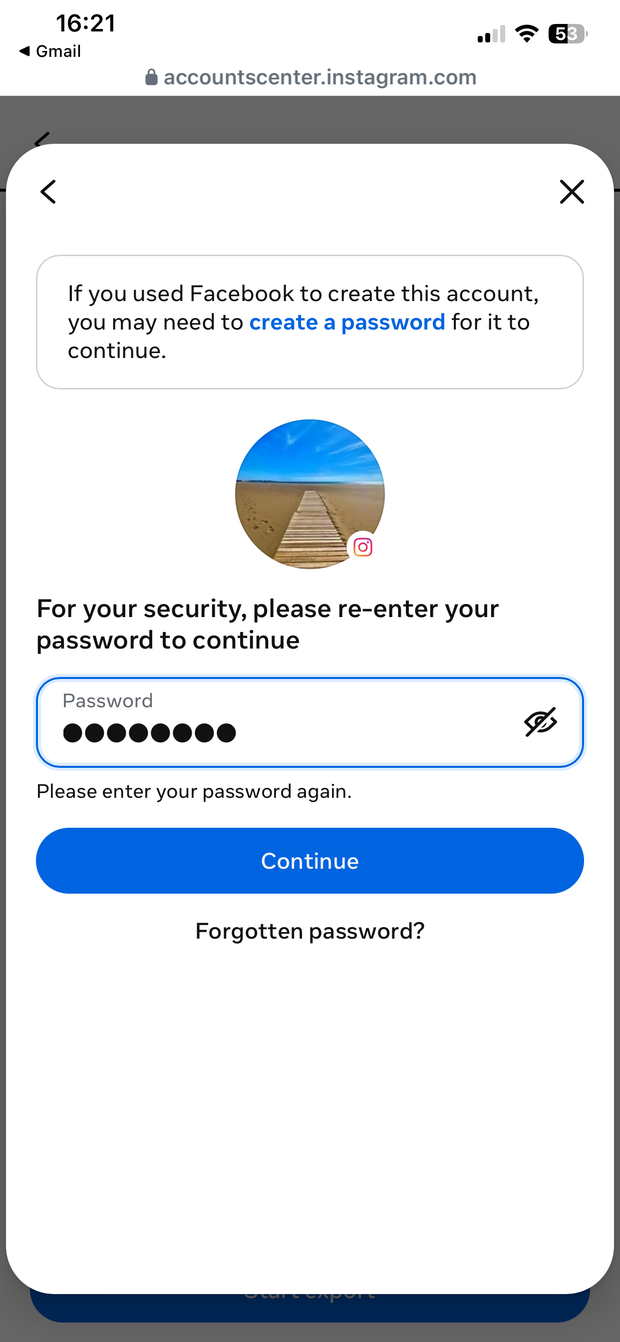
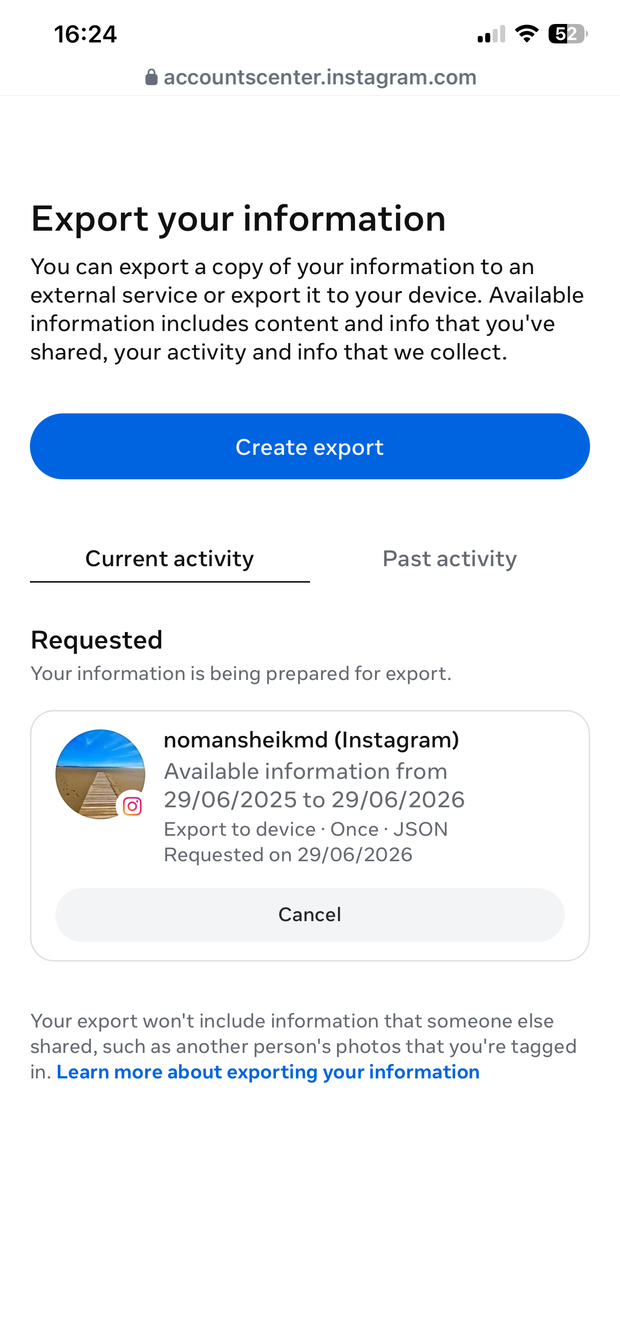
Instagram prepares the export in the background — usually about an hour, up to 48 hours for big accounts. It shows as being prepared, and you get an email and a notification when it's ready.
Want us to nudge you when it's likely ready?
We'll email you once every 24 hours, up to 5 emails, then stop. The reminder auto-stops the moment you import. Sign-in required.
-
When it's ready, come back and download the file
Instagram emails you when your export is ready. You have a few days before the download link expires, so don't sit on it.
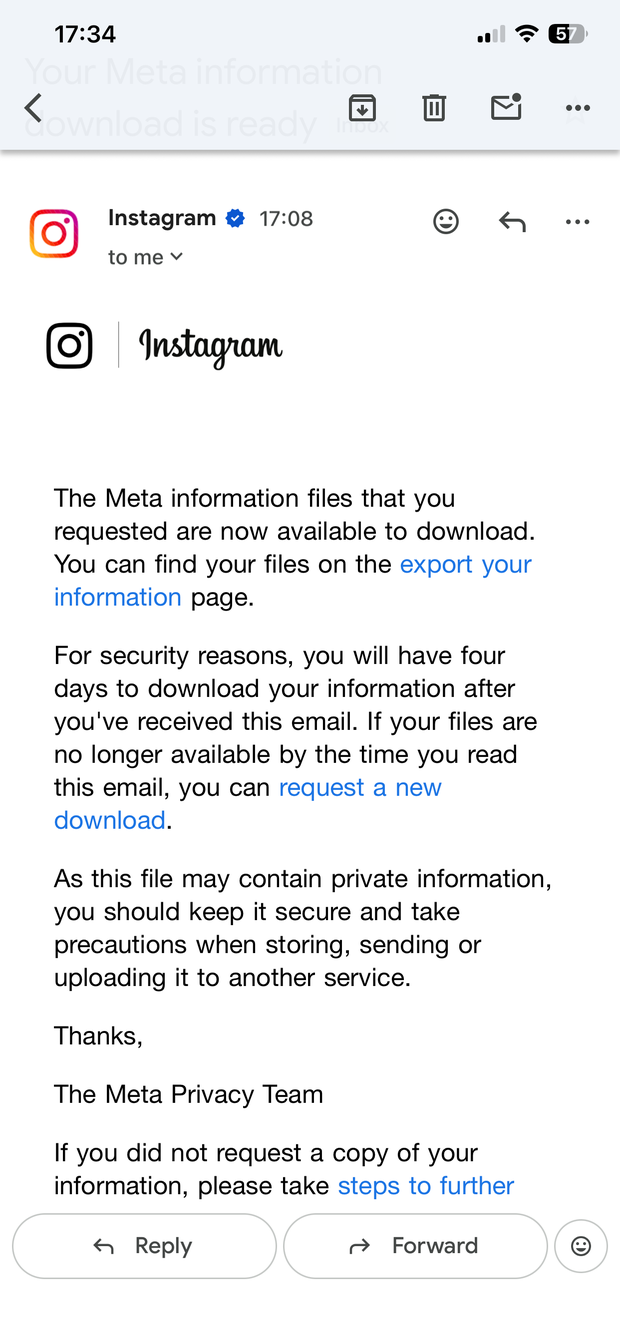
Go back to the same place — Accounts Centre → Your information and permissions → Export your information — and your finished export now shows under Available downloads. Tap Download.
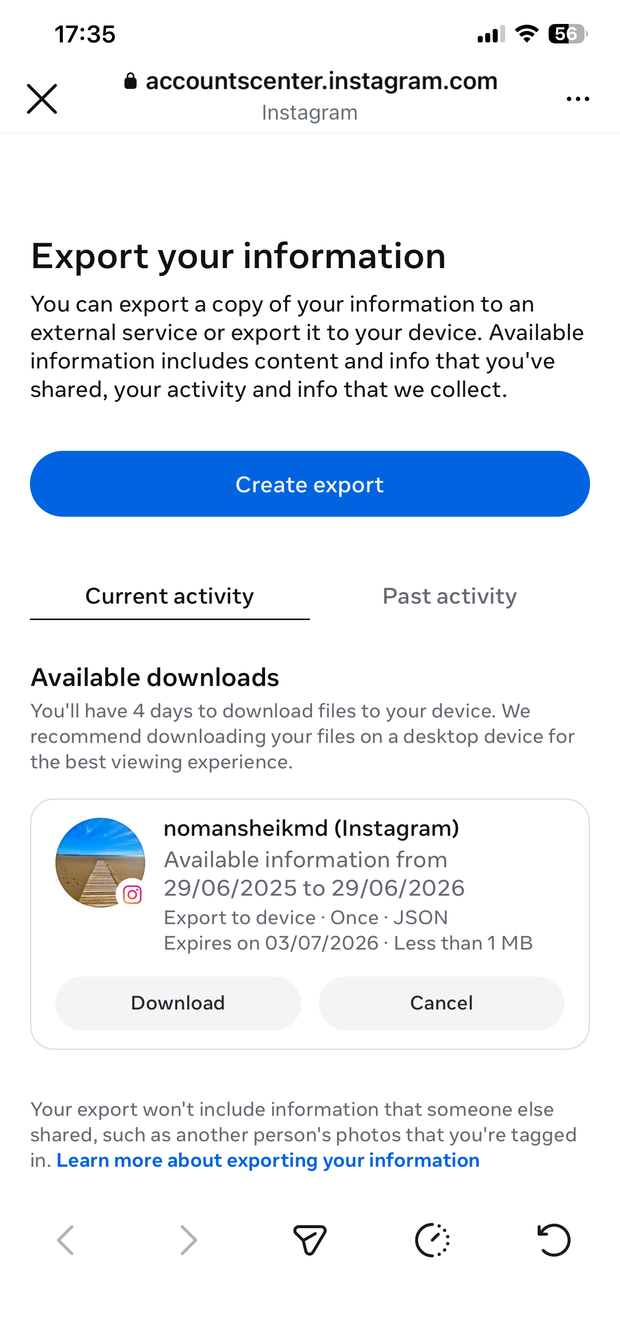
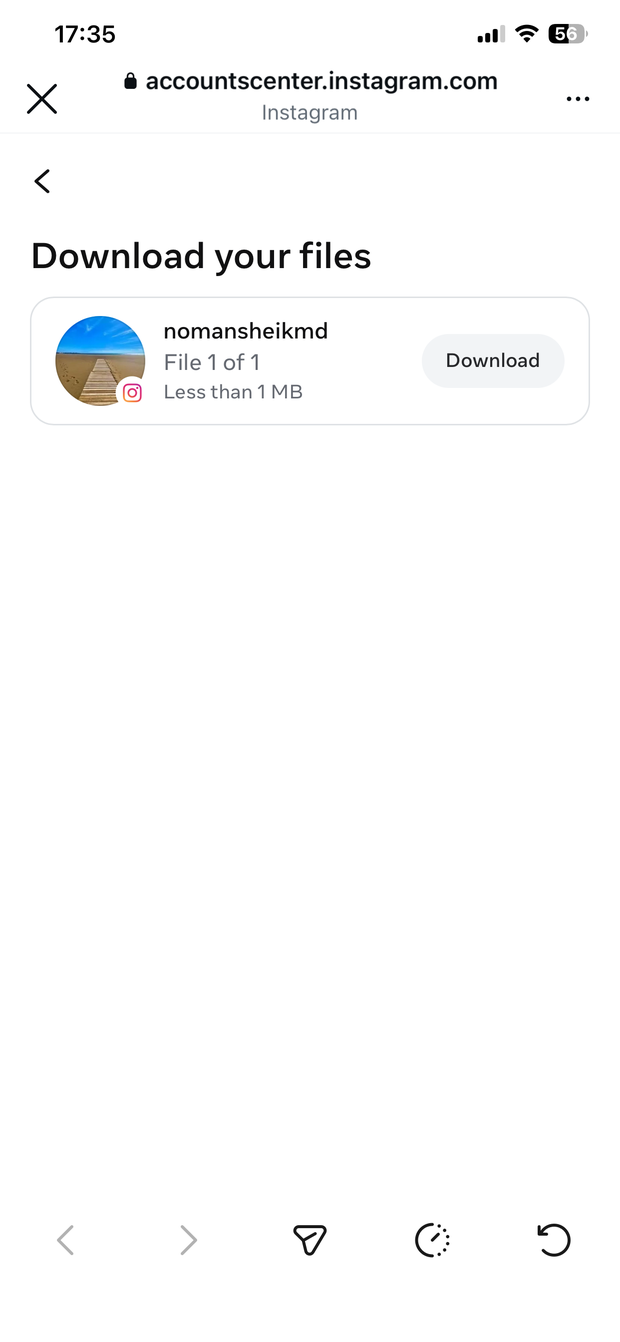
Confirm your password if asked, then tap Download to save the
.zipto your phone.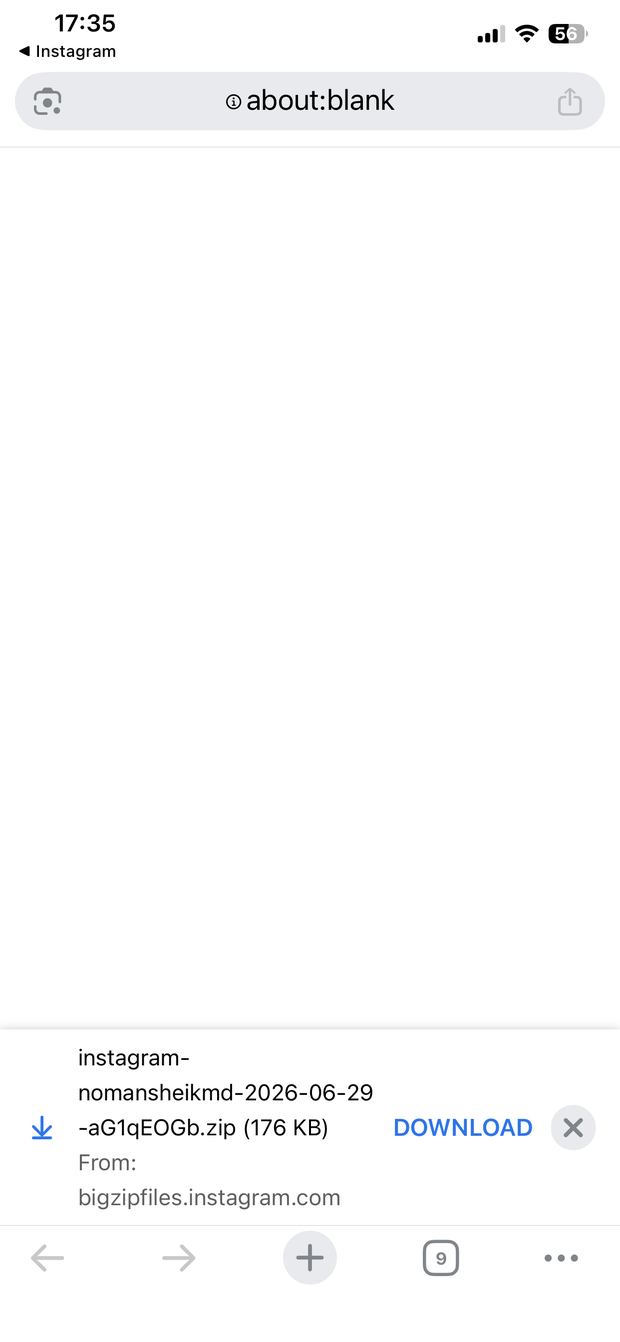
Bring it into MemRa
Got the .zip? Two ways to get it in:
-
In the MemRa Android app — open the ☰ menu →
Import past saves → choose your
.zip. (See the Android guide.) -
Send it to us on WhatsApp — attach the
.zipas a file and send it to MemRa on +34 603 62 07 88. Because it comes from your own number, we know it's you — we'll import it into your inbox for you.
We only import items you haven't already saved by forwarding, so there are no duplicates — keep using the WhatsApp flow at the same time.
FAQ
Why JSON and not HTML?
The JSON export is the machine-readable one — it lists each saved post with a clean link we can import. The HTML version is built for reading in a browser and is much harder to pull links out of reliably.
Will every saved post make it in?
Almost all — but some may have been deleted by the creator, gone private, or had their page taken down between when you saved them and when we import. Those show as "couldn't preview" cards with just the link — still in your inbox, still searchable, just no thumbnail/title.
What about my TikTok history?
Same idea — see Import your TikTok saves.