Saving videos with the iPhone app
Found a video worth keeping? Tap Share, tap More, then pick MemRa. It lands in your inbox within a few seconds — transcribed, summarised and tagged — so later you can find it just by asking, instead of endlessly scrolling your saves.
MemRa is a free download on the App Store (iPhone, iOS 16 and later).
Sign in first
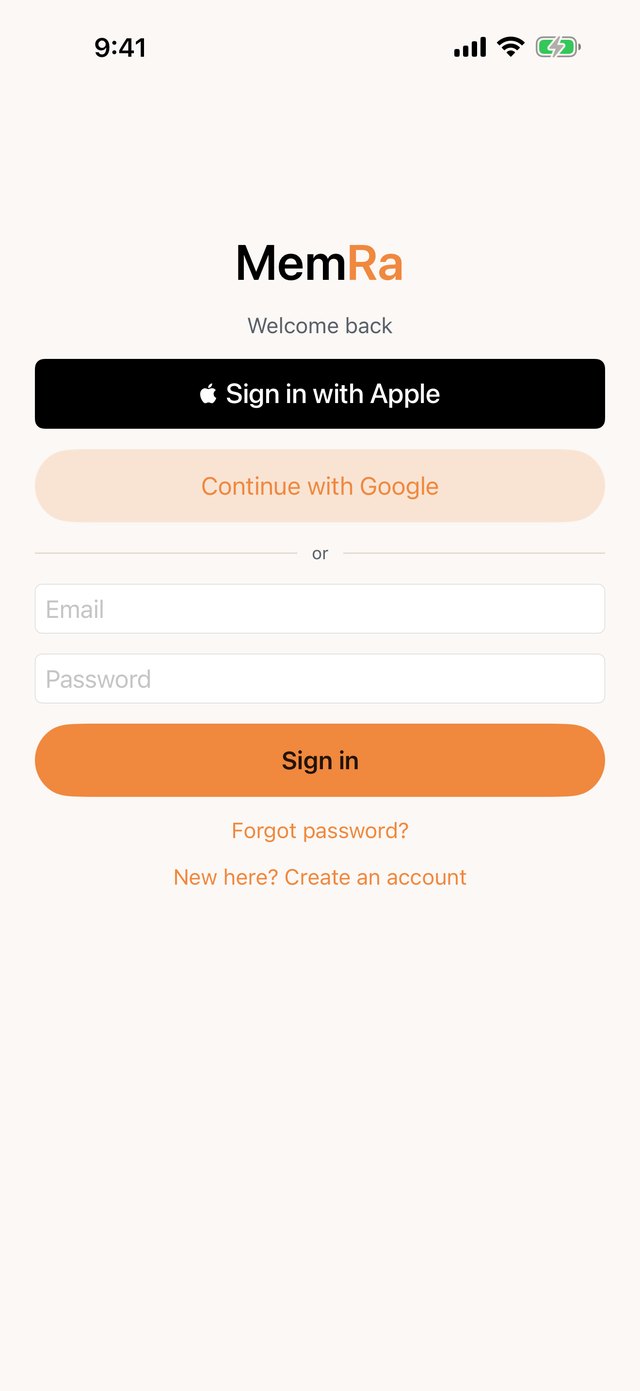
Open MemRa and sign in — Sign in with Apple, Continue with Google, or your email and password. If you already use MemRa on the web or on Android, sign in with the same account and everything you've saved is already there.
Save a TikTok in a few taps
📷 The screenshots below are in English — TikTok and Instagram show their own screens, but the buttons are in the same place in your language.
-
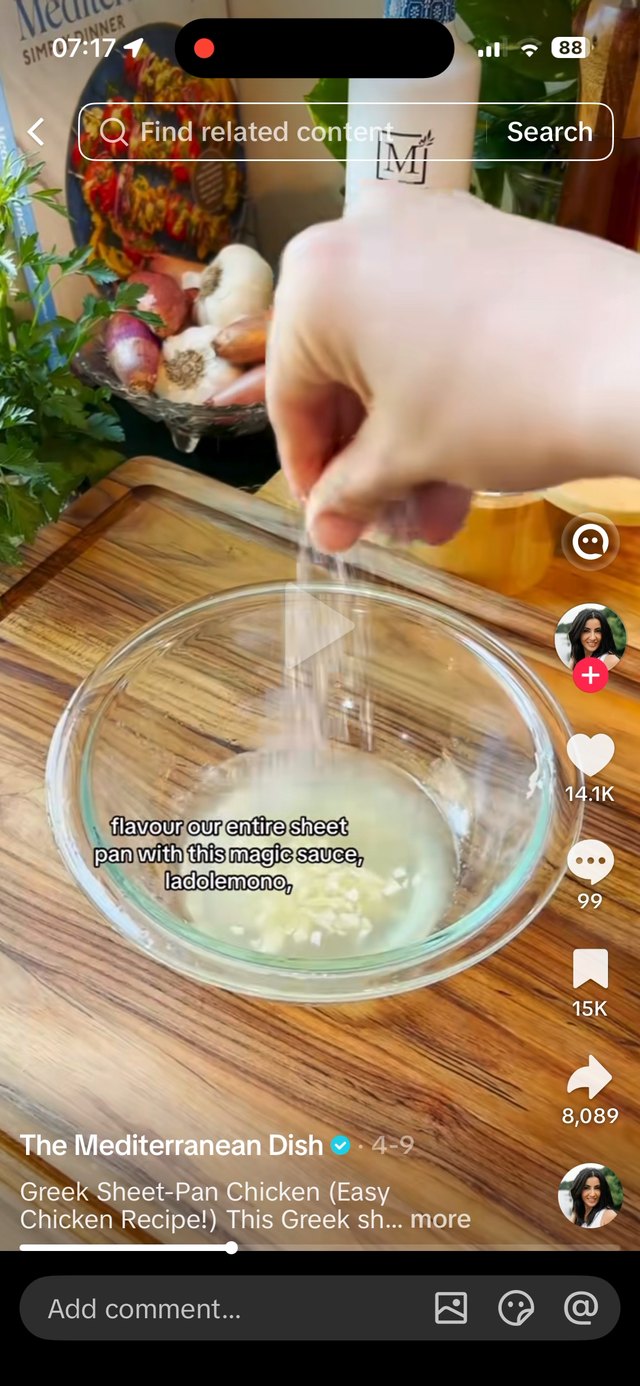
Tap the share arrow
On the video you want to keep, tap the ➤ arrow on the right-hand rail.
-
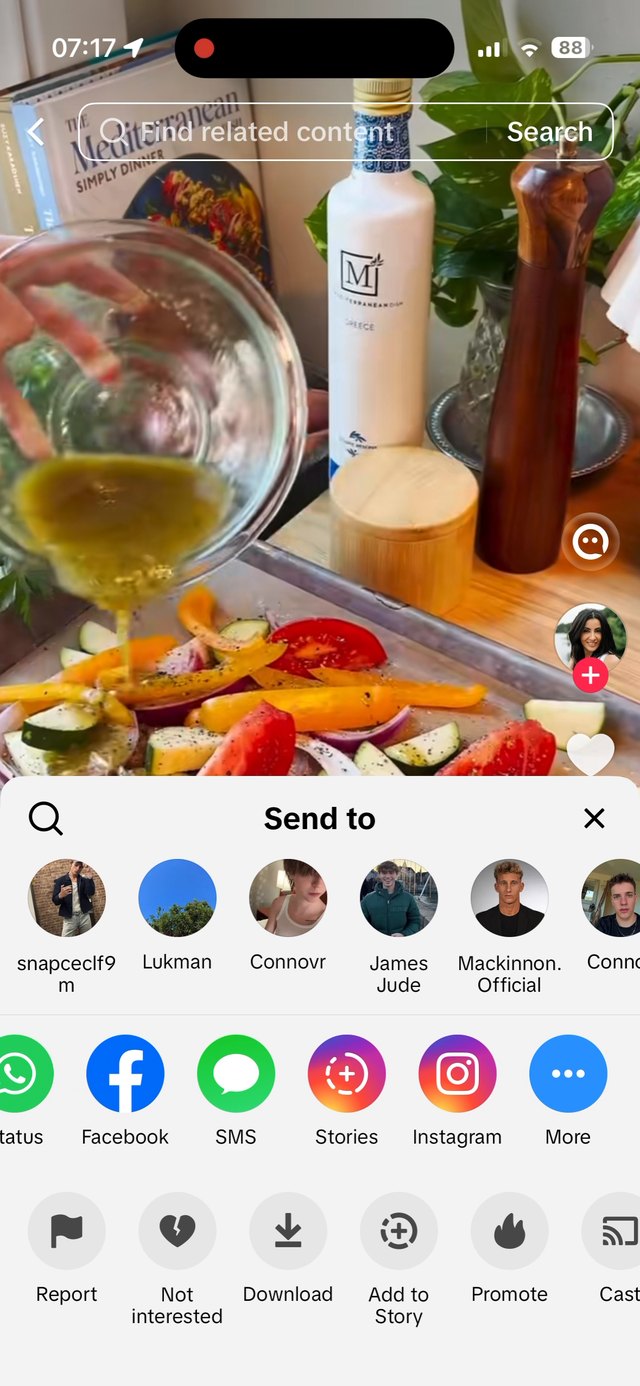
Tap “More”
On TikTok's “Send to” sheet, scroll the app row to the right and tap More — the blue ••• at the end. That opens your iPhone's own share sheet.
-
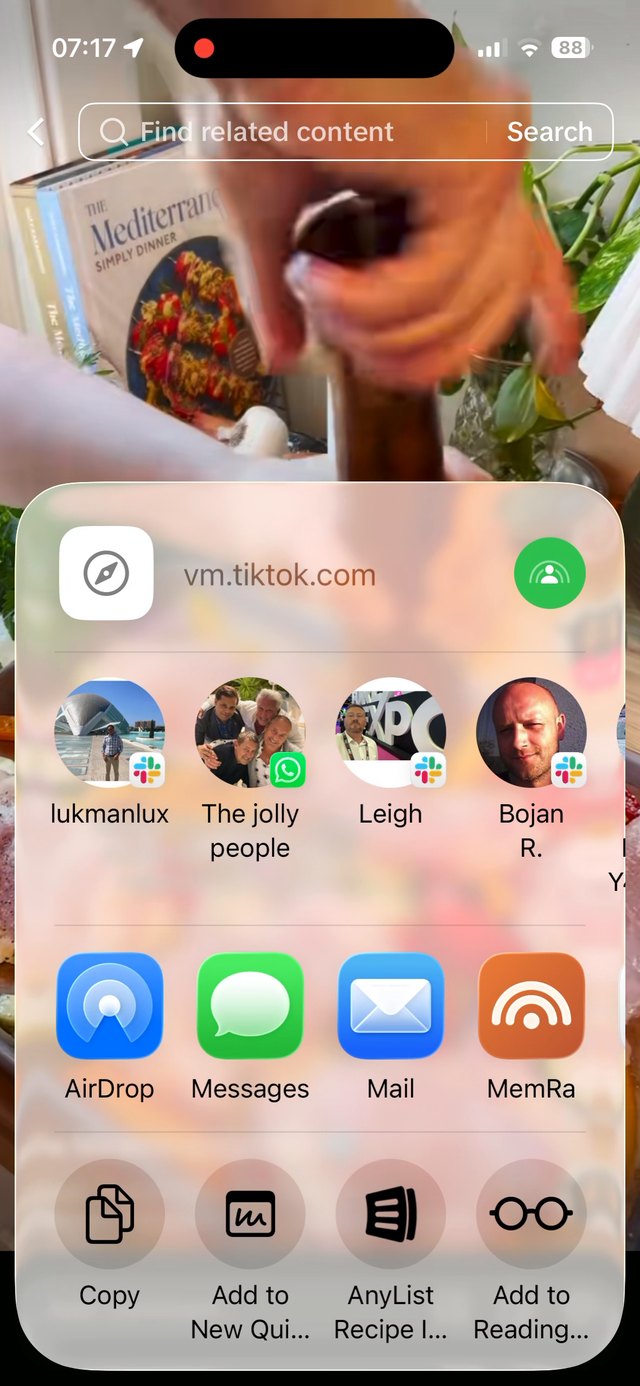
Tap MemRa
Your iPhone's share sheet slides up. MemRa — the orange icon — sits in the app row alongside AirDrop, Messages and Mail. Tap it once.
-
That's it — saved
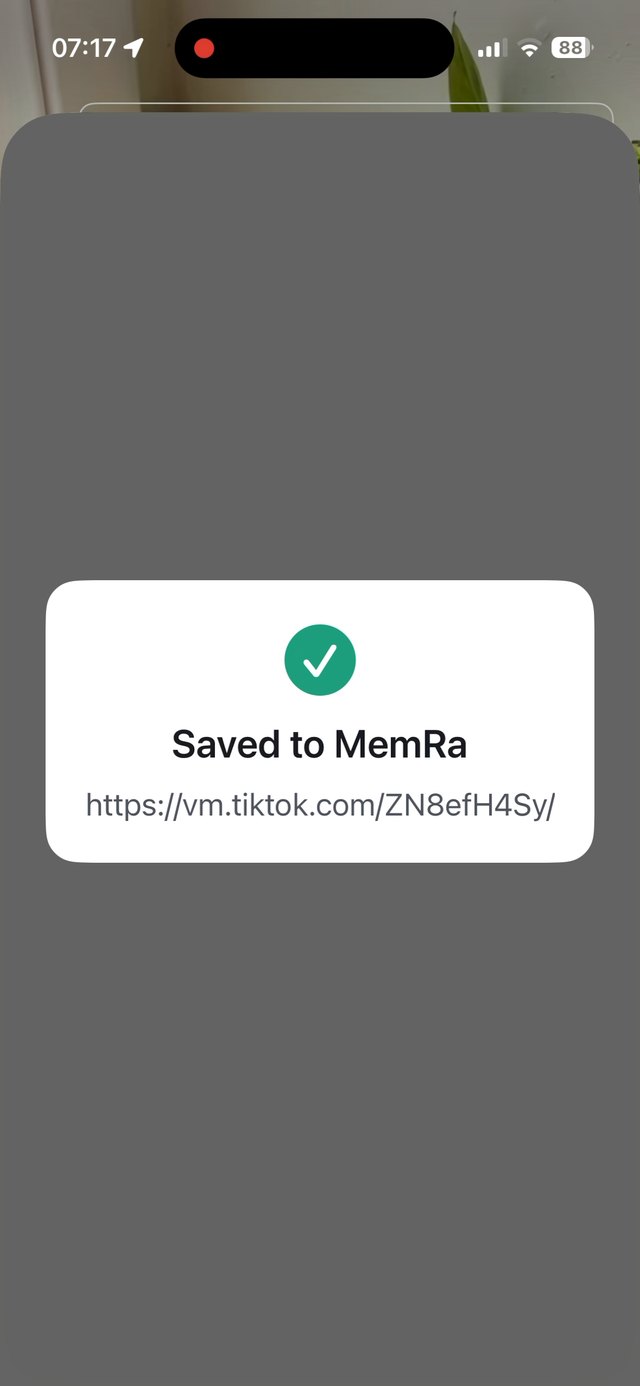
You get a Saved to MemRa confirmation within a second, and you're straight back to TikTok. MemRa transcribes and files it in the background.
The even faster way: copy the link
Skip the share sheet entirely. Tap Share → Copy link, then just open MemRa — it spots the link you've copied and offers to save it. More on the copy-link shortcut.
Then find it by just asking
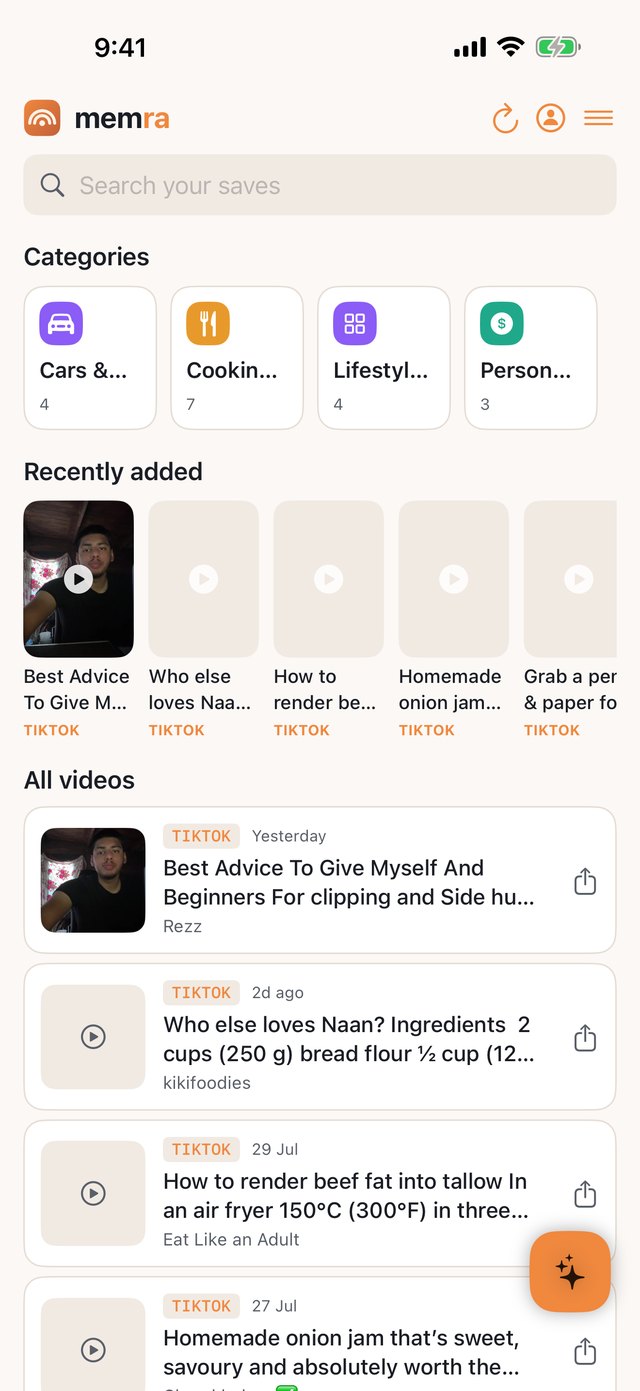
Everything you save lands in one searchable inbox, sorted into categories. Search by title, creator or your own notes — or tap the ✦ button and ask a question in plain language. MemRa answers from what you've saved and links the exact videos it used.

Open a video: summary, transcript and categories
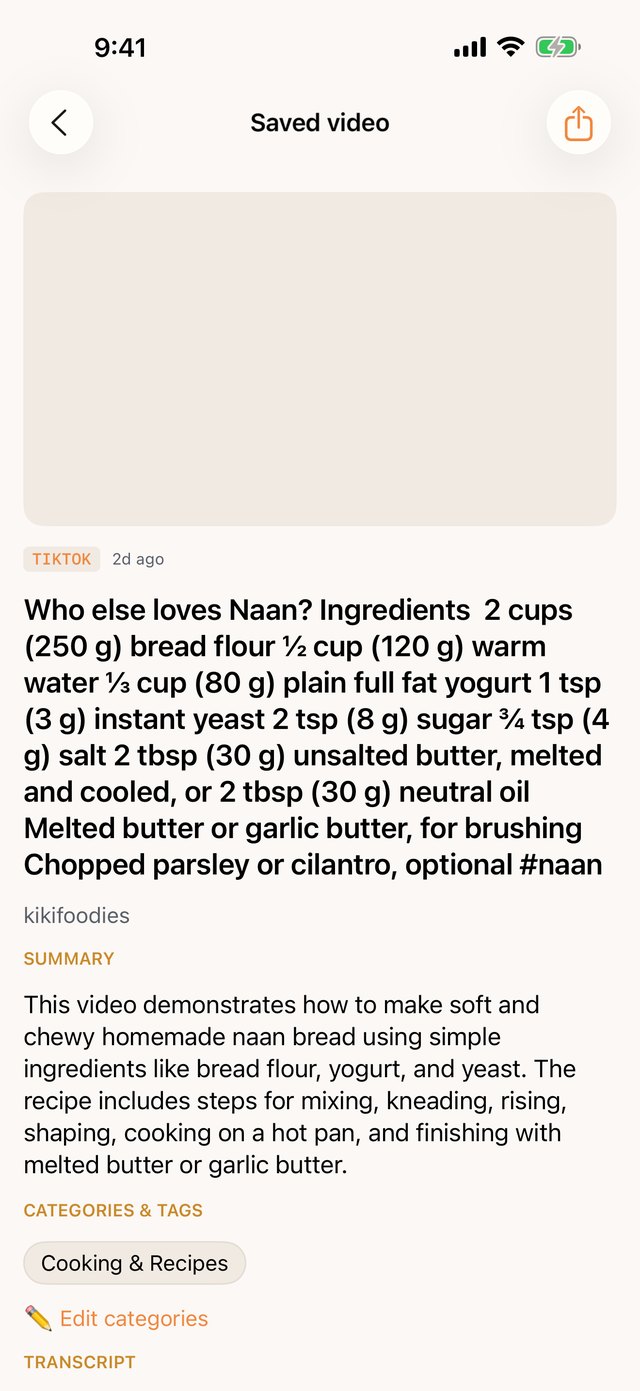
Tap any saved video to see its summary, the full transcript of what was actually said, and the categories MemRa filed it under. Got it wrong, or want it somewhere else? Tap Edit categories — your edits stick and won't be overwritten by later AI runs.
Bring your history with you
Been saving videos for years? You don't have to start from an empty inbox — import your existing TikTok or Instagram history. The export is done in the TikTok or Instagram app, so the steps are the same whatever phone you're on: see the TikTok import guide or the Instagram import guide.
Sharing what you've saved
Every saved video has a share button — and it isn't only single videos. You can share a whole answer MemRa gives you, or a whole category, in one message. More on sharing.
On Android instead? See the Android guide. Prefer to save over WhatsApp? That works too — see the main help guide.